How to connect to the internet
You will need:
- identity card or ISIC
- valid accommodation contract or dormitory card
- room number
- all devices you want to connect to our network
Next steps
- Visit a televizor, a volunteer who handles registration and internet-related problems. See the current list of televizors.
- The televizor will register you in Hydra. You will receive an email containing a password that you can change. Your Hydra ID is also the variable symbol used for payments. The televizor will explain the academic-network rules and activate internet access for ten days. You must pay the membership fee during this period or access will stop until payment is processed. You must also present a valid accommodation contract or dormitory card.
Device settings
Windows
The randomised MAC-address option should be disabled. Select the network and connect using your club email address and the network password set in Hydra.
Android
The first time you try to connect to the Pod-O-Lee network you will be prompted to log in. Along with your network login and password, set the following information:
- EAP method: PEAP (if you don’t see this option, click Advanced options)
- Phase-2 authentication: MSCHAPV2 (for older Androids, you can select None)
- CA certificate: Use system certificates (certificate validation is required for a secure connection)
- Domain: radius.pod.cvut.cz
- Identity: your club email, e.g. p.novak@pod.cvut.cz
- Password: network password set in Hydra

iOS
Before connecting, open the details for the “Pod-O-Lee” Wi‑Fi network and configure it to use the device address rather than a random private address.
Log in using your club email and the network password set in Hydra. When prompted, verify and trust the RADIUS certificate.
Linux
The exact steps in Linux depend on the distribution, but the connection parameters are the same as on Android. Certificates are often stored under /etc/ca-certificates/extracted/, for example in /etc/ca-certificates/extracted/ca-bundle.trust.crt.
Wired connection (Ethernet)
No additional setup is required: connect the cable to a registered device. Each member may connect one wired device. Ask a televizor if you need an exception.
Wi‑Fi
Wi‑Fi is available in all blocks, in Pod-O-Gym, and around the canteen.
You may register up to three wireless devices, one in each category: computer, phone, and tablet. You can ask the network administrator for a justified exception.
The registration process is the same as for a wired connection.
Wi‑Fi password
To set your Wi‑Fi password:
- Open Hydra’s network settings and log in using the details from your registration email.
- Find the red “Set new password” button below your username. This network password is different from your Hydra login password.

Connect using the case-sensitive username and your new password. If it does not work immediately, wait about ten minutes and try again.
Troubleshooting – randomised MAC address
Manufacturers use different names for this feature. If it is enabled, the device may not connect because our network checks its MAC address against the one registered in Hydra. Configure the device to use a fixed MAC address for the Pod-O-Lee network.
If you need help, contact an administrator on your block or a neighbouring block. See Contacts.
Mailing lists
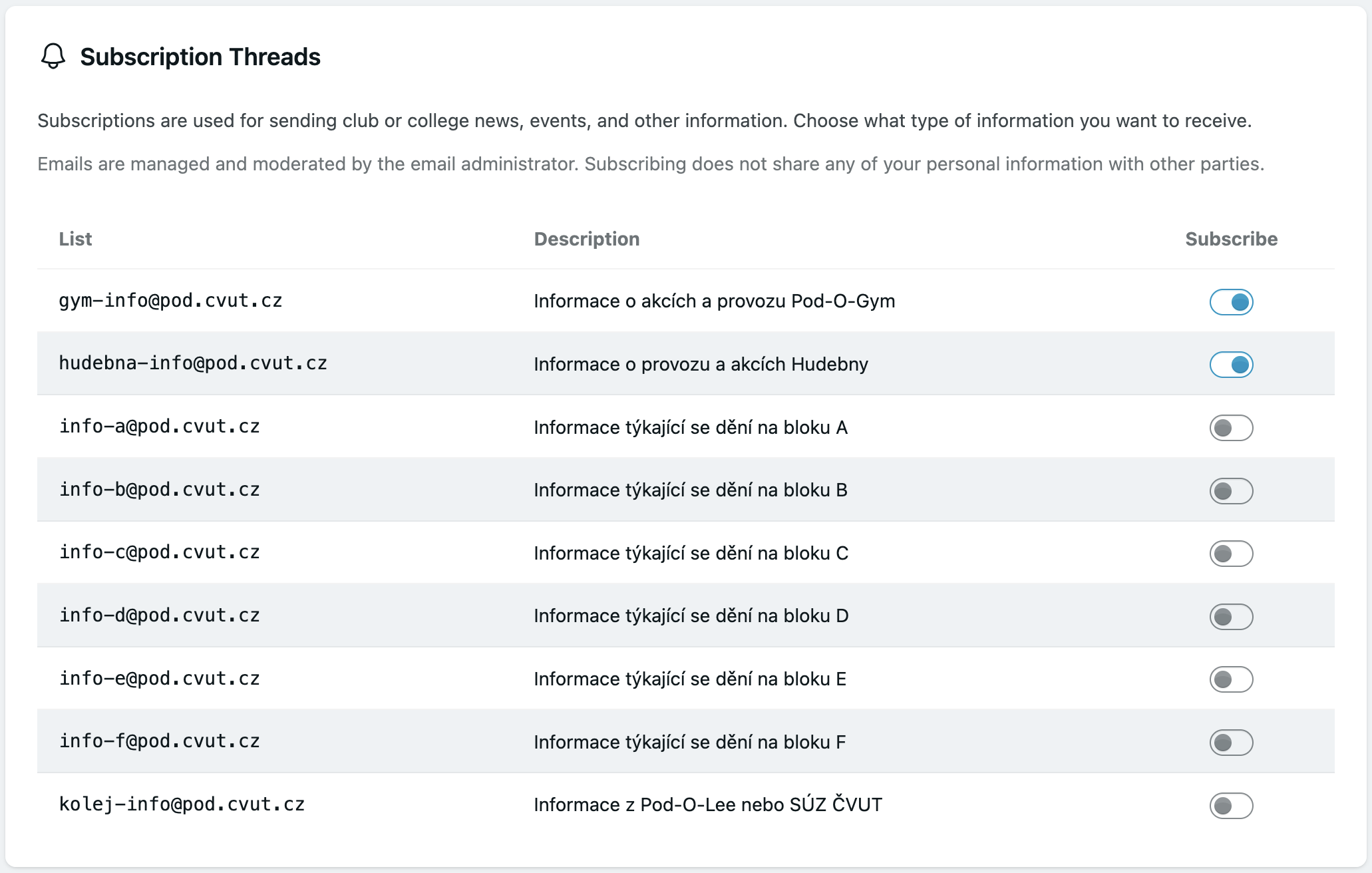
Every newly registered member is automatically subscribed to kolej-info@pod.cvut.cz. Dormitory management uses this list for important information such as inspections and outages, while active Pod-O-Lee members announce events, elections, network outages, and other news.
You should also subscribe to your block’s list at info-x@pod.cvut.cz, replacing x with the letter of your block. Administrators use it for block-specific meetings, outages, and other information.
The lists are moderated to prevent spam. To distribute important information through them, email admins@pod.cvut.cz.
You can manage your subscriptions in Hydra.
Computer network rules
Every network user has rights and responsibilities set out in the internal regulations. By using the academic network, you agree to follow the rules of the club, the CTU Student Union, CTU, and CESNET.
How it is in practice
This section provides only a brief overview of the network rules. It is not complete and may not be current. For the exact wording of the rules, please read the relevant internal regulation in Documents (Czech only).
- You must not use the network for commercial purposes.
- You must not use the network for illegal purposes.
- Examples include attacking networks and servers or downloading and distributing illegal content.
- If we receive a report that your device is infected with a virus, we will disconnect your device from the network until you prove to us that the device is virus-free.
- You can only use a device on the network that is registered in our system.
- Related to this is that you must not give access to the network to others.
- For this reason, you must not extend the network (for example, by using your own router).
The network is monitored, so violations can be detected. Penalties depend on the severity of the violation and may include suspension of network access.
For a specific request, contact a televizor on your block or a neighbouring block, or one of the network administrators. See Contacts.